
Spend Mapping is a powerful tool designed to display big amount of Market Data for particular products in a well-planned way and provides users with the following:
- Clear understanding of how well users are performing in comparison with the real market;
- Information about how indices are influencing prices for needed products;
- Real suppliers contact details;
- Savings execution;
- Transparency, accuracy and relevance of data.
Spend Mapping gives access to such data (for chosen items) as:
- Benchmarks
- Savings, Total Savings
- Proposed suppliers with real contact data
- Cost Model
- Forecast (based on Cost Model)
- Automatic creation of RFQ
A completely adjustable layout displays the information in the most convenient way for users. Moreover, you can use filters to see needed information based on particular regions, responsible sources and other criteria.
HOW TO SET UP SPEND MAPPING
There are two ways of Spend Mapping creation: you can either choose materials from the list of 100 most common items or upload your own list.
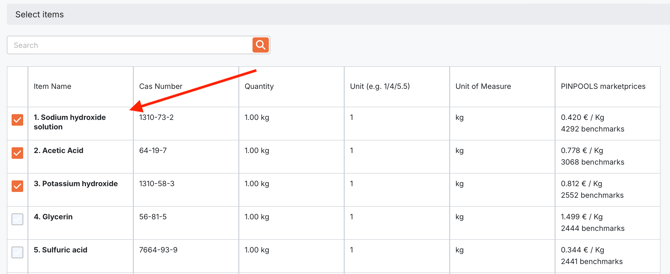
1. Choose START FOR FEW ITEMS if you want to select products from the list of 100 products.Choose necessary items by clicking tick mark on the left from item names. After all products are selected, click button Proceed on the bottom of the page.
Click button Download Draft, so the system will generate Excel file for you to fill it in. Such obligatory columns as Item name, CAS Number, Quantity, Unit of Measure (kg only), Unit and Current Price must be present and filled in.
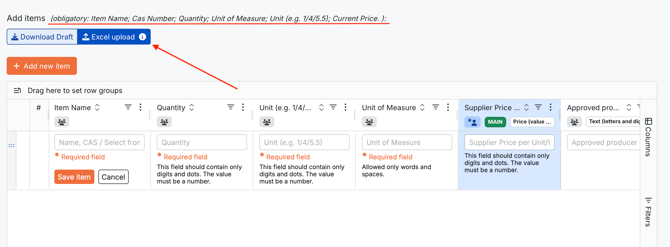
After Excel file is ready, click button Excel upload. The system will offer you to define all column types and their names. Carefully check all columns and click button Upload. You will be able to change columns later if needed.
Edit information in cells according to your needs by clicking on cells. You can add and delete columns, change their type etc. Read more about how to work with Items tab here.
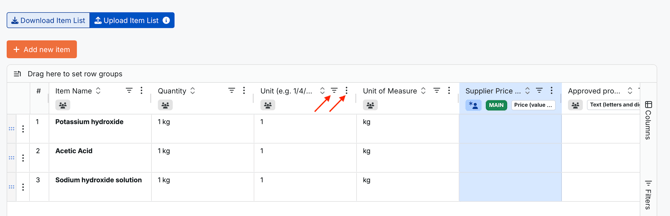
IMPORTANT. As the system allows you to create RFQ automatically, it is crucial to arrange all columns and their content properly at this step in order to get as precise data to launch successful RFQ as possible.
HOW TO ANALYSE DATA IN SPEND MAPPING
After Items list is processed, new tabs will appear: Alarm, Spend Mapping, Dashboard, Benchmark KPI, Supplier KPI, Documentation.
1. Alarm tab
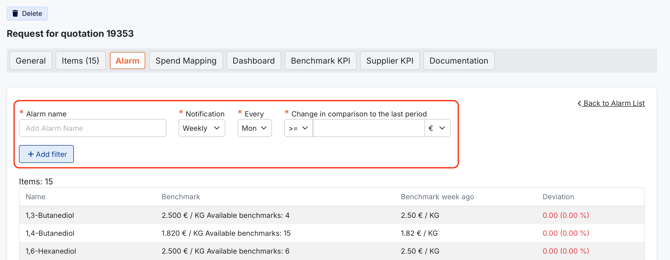
This function notifies users about price changes over some time period. To activate it, users should create Alarm Name, decide on notification frequency, and value of change compared to last period, which will trigger the alarm.
2. Spend Mapping tab
contains summarised information based on the columns created by user, real data based on Market information per item and enables users to manage their requests effortlessly.
2.1 Market Information
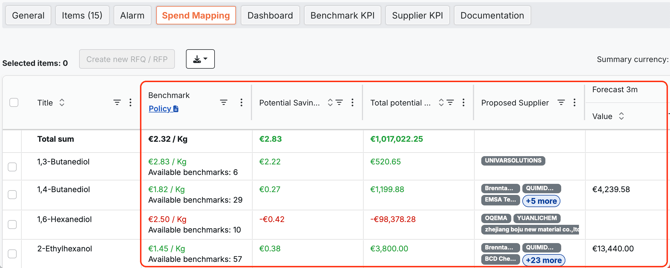
1. Benchmarks - medium Market price for a material, which is based on real transactions through PINPOOLS platform.
Read more about Benchmarks here.
2. Potential Savings per Unit and Total Potential Savings – estimated cost reduction: per unit and for the whole quantity per each product.
3. Proposed Suppliers – list of real suppliers who have previously quoted for same materials, which ensures high response rate.
4. Forecast for 3 and 6 months – calculated prediction of price change based on reliable information sources.
2.2 Management Tools
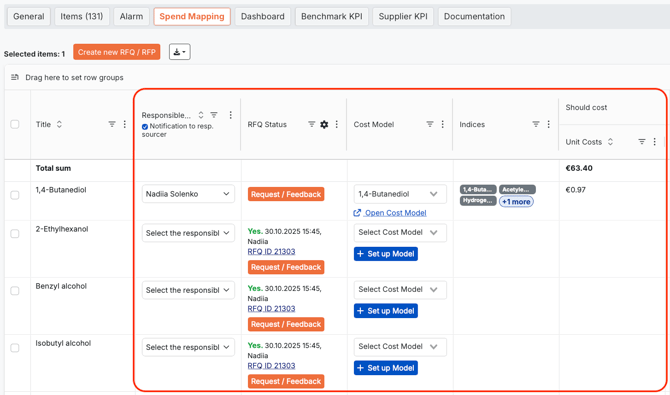
With the help of the following columns, users can easily assign responsible people to launch requests, manage RFQs and link Cost Models.
1. Responsible user. Allows to assign a product to a particular person and notify them automatically if changes appear.
2. RFQ status. Users can effortlessly create a request for needed items with the help of button `Request/Feedback`. The system also offers to create RFQ autonomously if there are some changes within a request to Responsible Users. Users should click Yes and they will be directed to RFQ creating with the opportunity to invite proposed suppliers automatically. If clicking No, users will be asked to specify the reason. This function gives clear perspective on all RFQs statuses and dates of latest changes.
3. Cost Model
Users can add an existing model or create a new one in order to get access to automatically calculated data about included indices and detailed information regarding price forecasting within the following columns: Unit Costs, Modelled Unit Costs, Total Spend Value and Modelled Total Spend Value.
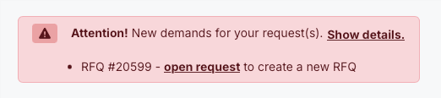
As soon as there is a need for Responsible User to create RFQ, they will receive such a notification in their account:
2.3 Additional functions
On the left from Item Name there are three Action buttons, which provide users with more detailed data per each product and its components:
 Flaw of Raws: total value of material components
 Unit Costs and Total Spend displays development process of Benchmarks and allows to manage volume in the background
 Volume History enables users to set volume history
Action buttons display large amount of information within one view, which helps users to have easy access to real data for faster and well-designed decision making.
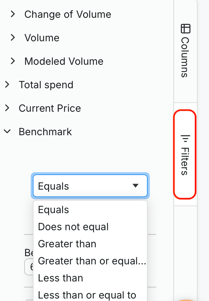
On the right side of Item tab page, you will find two other buttons Columns and Filters.
Use Columns to do the following:
- hide/unhide columns by clicking  checkmark;
- change columns order by holding and moving  button;
Use Filters to order the system to show you only those items that match the criteria you put in Filters section. Filters work based on the existing columns in the table. Filters set on Spend Mapping tab will be saved for user`s convenience, so user always picks up right where they left off.
3. Dashboard tab
Provides holistic view on all items at once. Data can be filtered based on particular regions, plants, responsible sources or any other criteria for users convenience, which gives a clear general picture and full transparency for users on how well they are performing compared to the Market.
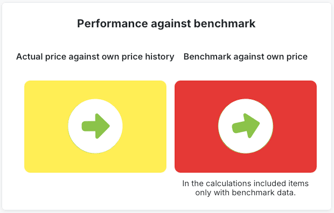
Performance against Benchmarks
Tiles with arrows are displayed to help users compare their performance with Benchmarks and Current Price.
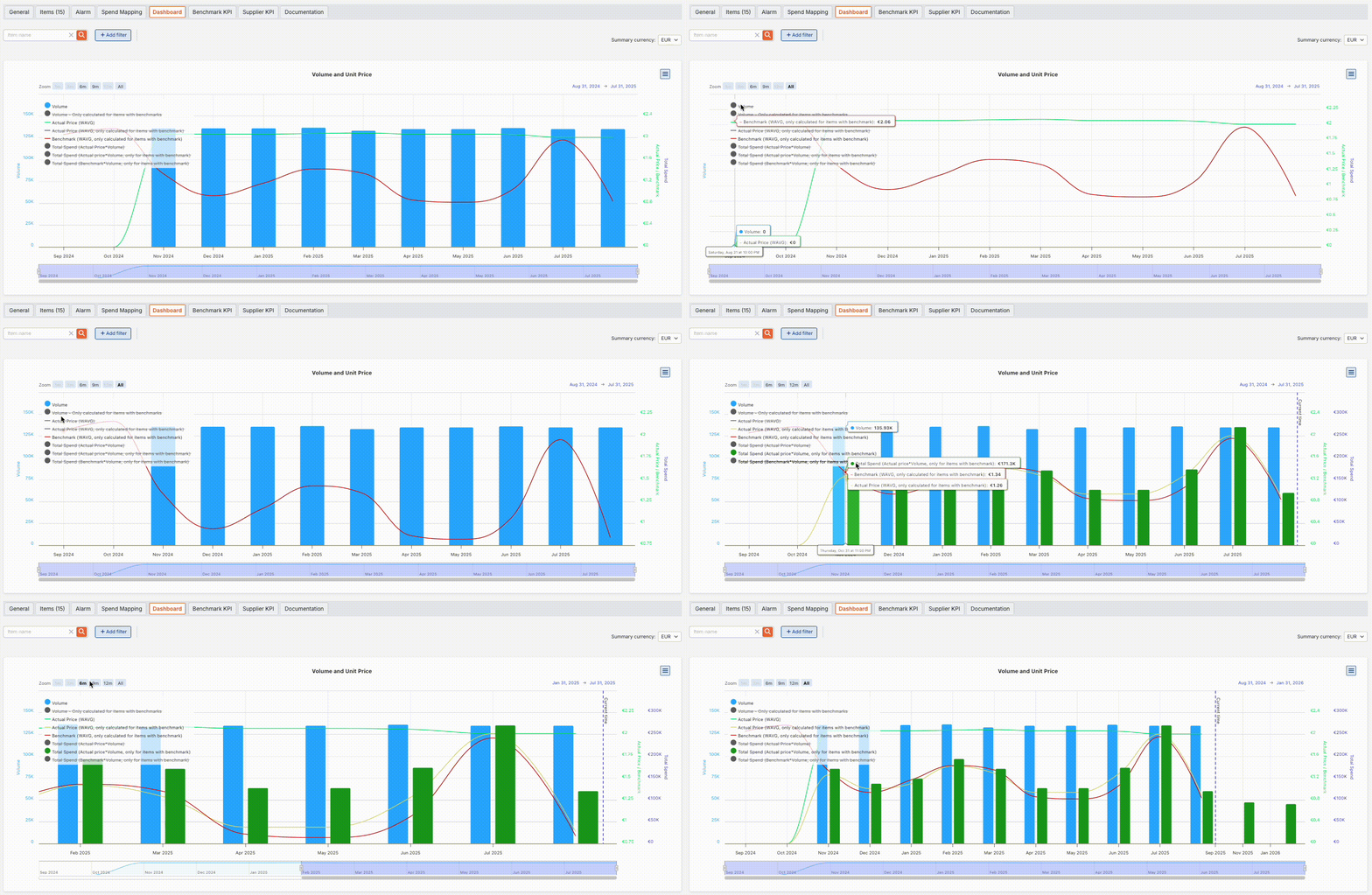
Volume and Unit Price Section
Users can adjust the view of the graph deciding on period and specific data to reflect, such as the following:
Volume - whole amount of items in certain Unit of Measure mentioned during Item list upload. It is displayed per month.
Volume - only calculated for items with benchmarks - amount of materials in chosen Unit of Measure. It is reflected only for materials that have PINPOOLS benchmarks.
Actual Price - (WAVG) - statistical average selling price (with all items taken into consideration)
Actual Price (WAVG, only calculated for items with benchmarks) - statistical average selling price for all items with benchmarks
Total Spend (Actual Price*Volume) - total amount in euro for the whole volume of all items altogether
Total Spend (Actual Price*Volume, only for Items with benchmark) - total amount in euro for entire quantity of items with available benchmarks
Total Spend (Benchmark*Volume, only for items with Benchmarks) - whole amount in euro of available benchmarks multiplied by volume of items with benchmarks.
By clicking on these items, users can control what information will be reflected in the graph.
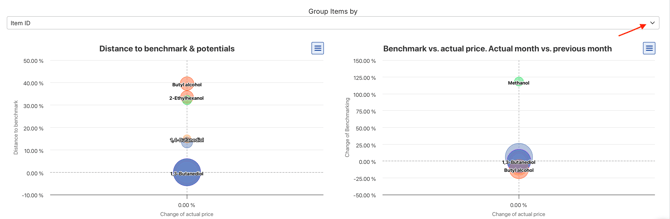
There are also additional graphs to show Distance to Benchmarks and Potentials and comparison of Benchmark and Actual Price (during current and previous months). In both charts, bubble size indicates product volume. In order to get the most precise results for graphs to reflect, users can group items by different criteria, such as Item ID, Item name, Cas Number, Standard Order Quantity, Unit of Measure, Unit (e.g. 1/4/5.5), Current Price Current and Responsible User.
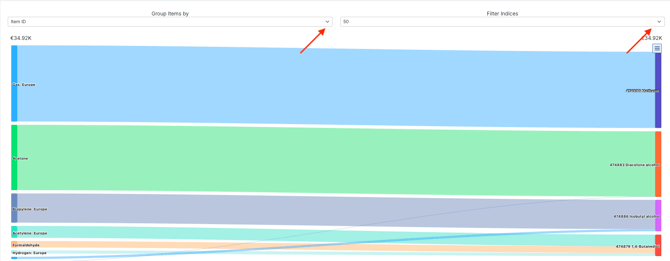
Another graph on Dashboard reflects Product Flow Over Time and can be also managed by grouping items according to different criteria and indices filtering.
4. Tab Benchmark KPI
On this tab users can check all statistical data based on the request with the help of graphs and pie charts regarding the following: Savings, Benchmarks Availability Analysis and Available Benchmarks. These graphs can be downloaded as images.
5. Tab Supplier KPI
This page reflects data with the help of graphs and pie charts regarding the following: Identified Suppliers, Supplier Distribution Overview, Products Overview and Supplier Coverage Overview.
The information can be also downloaded as images.
6. Documentation Tab
Here users can leave notes for colleagues who have access to a request and attach documents, which will be also available for other users within the company.
Summary
Spend Mapping tool aims to provide users with full transparency of the market based on comparison and analysis of big amount of data for particular products. The information is clearly reflected and can be fully controlled by users for their convenience.