
AI Cost Modelling tool is designed to create generic models for anything based on best practices.
Where to find AI Cost Model on PINPOOLS
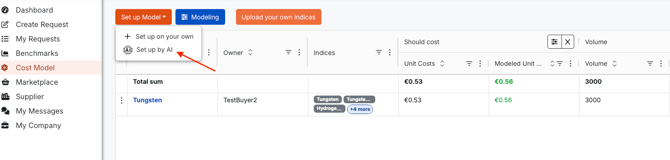
1. Cost Model tab
1. Go to the left-side menu
2. Find tab `Cost Model`
3. Click orange button `Set up Model`
4. In a dropdown menu select `Set up by AI`
2. Spend Mapping
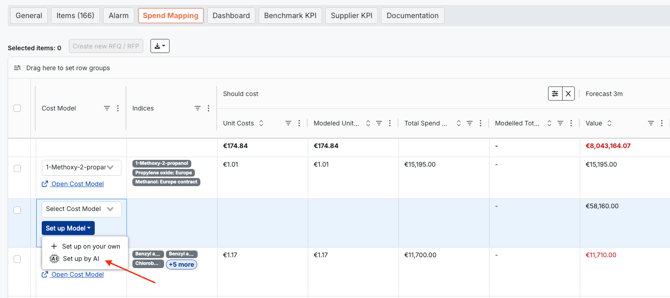
| for new Spend Mapping | for existing Spend Mapping |
|
1. Go to left-side menu |
1. Go to tab `My Requests` 2. Find needed Spend Mapping request 3. Go to Spend Mapping tab 4. In column `Cost Model` locate needed cell and click button `Set up Model` 5. In a dropdown menu select `Set up by AI` |
How to Set Up AI based Cost Model
1. Click button `Set up by AI`.
2. In a new window insert such information as:
|
 |
3. Click button `Create with AI`. Once the model is created, the system will send the notification.
How to Tailor AI built Cost Model
AI built Cost Model can be changed manually by users according to their needs.

Please note that overhead costs (rent, utilities, salaries, taxes etc) are not added on the background. If they are not shown as Child Items, it means that AI created Cost Model doesn`t contain them.
In this case, users should add needed costs manually.
1. Go to Model Structure tab
2. Click `pencil icon` next to total cost of Model or `edit` button above model name, next to `Back to Model list` and `Delete` buttons.
3. Click `plus icon` at the bottom left corner of the red section with Final Item information to add Child Item.

4. When a new window opens, select Commodity Indices and insert needed component in search bar. Select the one you are interested in. Insert the needed quantity or percentage of this element to create Final item. Decide on Region and Country for AI data, add Description if needed.
If there is no index found, select Custom item, insert Custom Item Name, needed Quantity, Price per Unit and Unit of Measure, choose type of Calculation and add Description if needed.
You can read more about adding and editing Child Items here.
After the model creation, there will be such new tabs as Model, Model Components, Model Structure, Forecast & News, Forecast Accuracy, which bring huge amount of data for analysis and further usage.
You can read more about how to analyse Cost Model here.