
Updated Pivot table tab is designed to provide a holistic view of all suppliers` offers and wide range of functions to make the selecting and awarding process comprehensive and well-structured.
Managing Items/Offers
Work with Items
Each item has a list of all offers, although the bids can be hidden for user`s convenience: click the down-facing arrow next to item name to hide the offers. They can also be easily shown by clicking the same button.

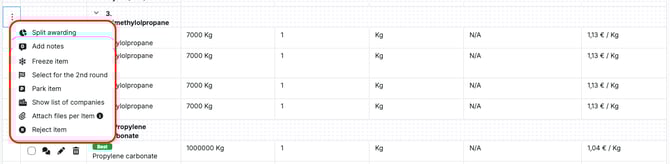
To be able to perform more actions to items, users should click Three-dot button in 1st column next to item name. Available functions are:
- Split awarding: set up split between suppliers. Choose the splitting method (unit of measure or percentage), enter quantities for each supplier, and confirm the action.
- Add notes: see existing notes or enter new ones.
- Freeze item: mark the product as frozen for filtering.
- Select for the 2nd round: arrange the second round.
- Park item: mark the product as parked for filtering.
- Show list of companies: check the list of companies invited for this product.
- Attach files: add attachments.
- Reject item: proceed with the rejection.
Work with Offers
For each offer users can do the following actions:
- `empty box icon` check/uncheck offers for further selection for 2nd round or award. Already awarded items will not have this icon available.
- `messages icon` sending personal message to supplier who made the offer. Such a message will be shown only to the supplier who made that offer; other suppliers will not see it.
- `pencil icon` editing offer; lets Buyer users make changes within offers from suppliers on their behalf
- `bin icon` delete offer. The system will ask for confirmation of the decision to delete an offer.

Additional Functions
On the top of the page there are different function buttons to apply filters on all the offers, manage 2nd round and awarding, download all the data etc.
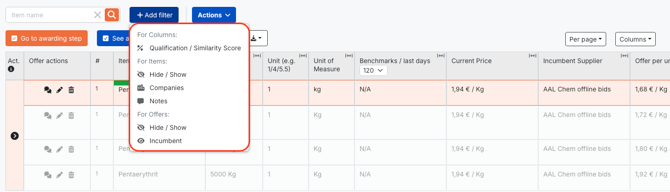
+ Add Filter
The filtering function lets users customise data display and adjust the Pivot table view by showing, hiding, or filtering specific data points based on various criteria, such as Suppliers Qualification, Hide/Show items, Companies quoted, Notes per item, Hide/Show offers, Offers by Incumbent suppliers.
Go to awarding step
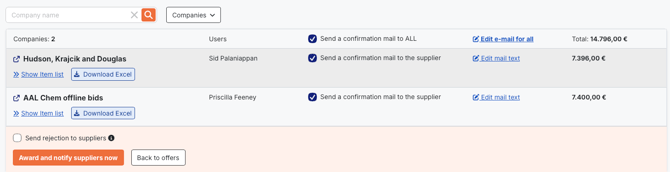
Once offers are selected, this button will become active. Clicking on it will lead users to awarding step, where it will be possible to view items per supplier for award, edit and send out confirmation and rejection letters.
See awarded offers
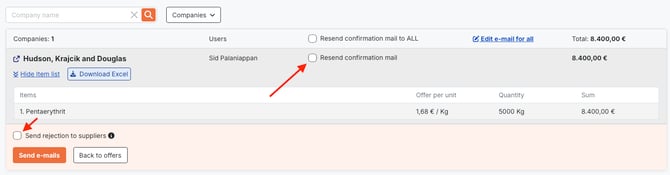
In case some offers were awarded previously within the event, users will find detailed information about those awarded bids, such as Supplier Company and User, list of awarded materials and Total Value. They also can Resend confirmation emails and send Rejection emails.
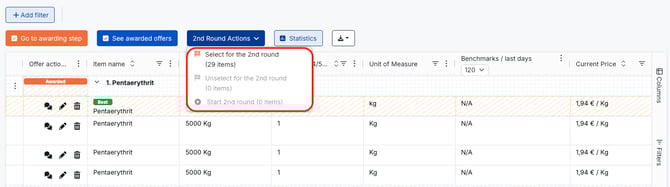
2nd Round Actions
Here users can Select/Unselect materials for 2nd Round and Start 2nd Round. Once 2nd Round is being launched, it is necessary to set Start and End dates for 2nd Round and compose email notifications for suppliers.
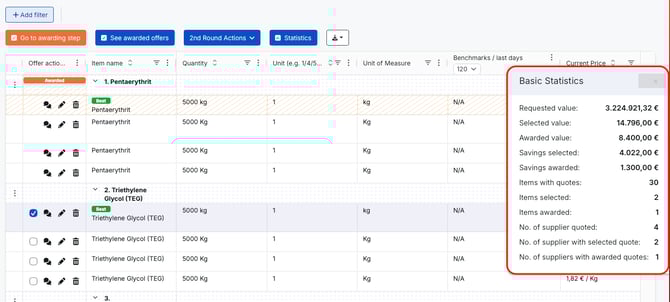
Statistics
After clicking on this button, users will see a new modal window in the top right corner with such data as Requested Value, Selected Value, Awarded Value, Savings Selected, Savings Awarded, Items with quotes, Items selected, Items awarded, Number of suppliers quoted, Number of suppliers with selected quotes, Number of suppliers with awarded quotes.
Figures in this section will change depending on user`s selection.
Download button lets users export all data via Excel
- Export all offers – all the offers will be downloaded via Excel table with all the columns according to Pivot table settings.
- Export all documents – all the documents shared by suppliers within the event will be downloaded.
- Upload planned allocation – once all offers have been exported, users should fill in `Planned Allocation` column via Excel, save the file and upload it back to the system with `Upload planned allocation` function. Selected offers will be reflected on Pivot table

Managing Columns
Updated Pivot table offers more flexibility in terms of columns view and management, as each column can be hidden/shown, pinned, auto sized. Users can also utilise every column as filter to view specific offers, which match needed criteria.
Functions per Column 
 button – click to change order of items: A-Z order, Z-A order;
 button – click it to filter items in order to find particular ones;
 button – click to sort offers ascending/descending, pin columns, auto size them, pick which columns to hide/unhide or reset columns.
Column Item name also has a function as `Expand All` or `Collapse All`, which will hide all the offers for all the items or show them.

You can also click the column name, hold and drag it to left or right to change its order in the table.
Manage column size by holding and dragging its borders.

Additional functions
On the right side of Pivot table page, you will find two other buttons Columns and Filters.
Use Columns to do the following:
- hide/unhide columns by clicking checkmark;
- change columns order by holding and moving button;

Use Filters to order the system to show you only those items that match the criteria you put in Filters section. Filters work based on the existing columns in the table.

Updated Pivot table is designed to provide users with wide range of tools for personalised view and profound analysis of big incoming data from suppliers in a convenient and totally adjustable way.