
If RFQ owner needs to award not full volume to one supplier, but partly according to their strategy, one of possible ways is to use function `Add split quantities` on Scenarios tab.
Here is a step-by-step guidance on how to do it:
-
Go to the Scenarios Tab: Open the Scenarios Tab within the request.
-
Click "Create Scenario": Create a new scenario, create a name for the scenario and click the button `Add new set`. Then click button `Add split quantities`.
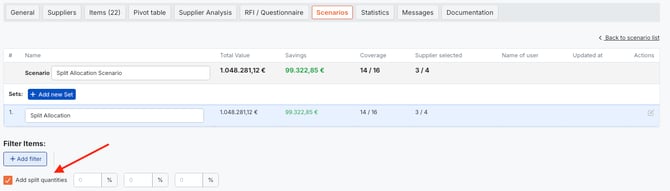
3. Enter the percentage for planned allocation and see how Item list and such data as Total Value, Savings, Coverage, Selected suppliers etc change as you insert percentage.

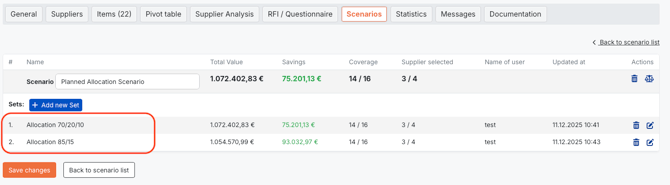
Within Scenarios, you can create several Sets with different percentage rates to see how different Sets influence final awarding results.
It is also possible to combine `Split quantities` function with other filters to view expected results.
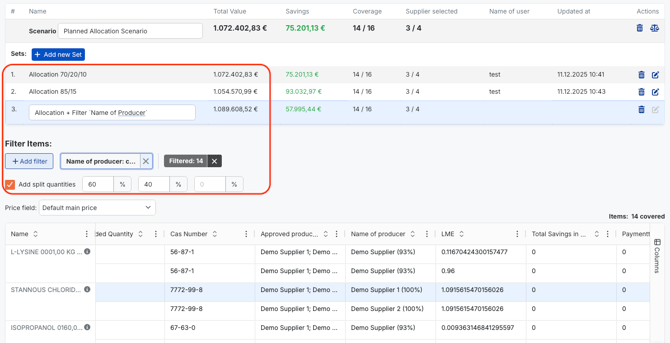
If applied filters don`t match planned allocation, the system will show warning:

In this case, awarded percentage of other applied filters should be changed accordingly.
You can find more ways how to do split awarding in here.