
Once RFQ ends, there is an available button + Series, which allows to create Series request based on existing RFQ including its items and supplier lists.
RFQ conversion into Series consists of the following steps:
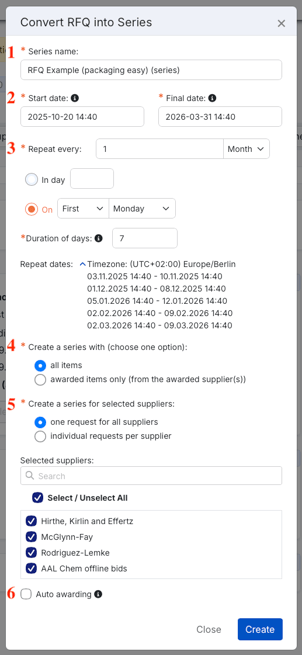
1. Name. The name is automatically created based on RFQ name, but can be easily modified for user`s convenience.
2. Setting Start date and Final date. It is important to mention that Final date means the end of the whole Series request, not its 1st period.
3. Repetition of active periods:
- how often event should repeat itself: daily/weekly/monthly;
- what day it should start;
- how many days it should last.
After selecting all the options, the system will display all active periods (repeat dates), so that users could check if all the periods are suitable.
4. Items selection. There are two available options:
- include all items from RFQ;
- include only awarded items (from awarded suppliers).
5. Suppliers selection. There are two available options:
- create one Series request for all the suppliers;
- create individual request per each supplier.
Users also can select suppliers from the list of all suppliers, who were invited to the RFQ, for further invitation to Series request.

6. Auto-awarding. Once enabled, the system will automatically overtake the awarding from prior periods. This function should be activated if user plans to stick with their awarded supplier and needs only price updates. This function should not be activated if user tends to award a new supplier each period.
Additionally, users can Enable automatic ERP mass update from the very beginning of Series requests creation with no need to wait until the awarding process begins. This function helps to fully automate the process of maintaining purchasing agreements by regularly adjusting pricing, quantities, and validity periods.
You can read more about ERP set up and update here.

If there is a necessity to create a reoccurring event based on already existing RFQ, it can be done within few clicks without creating the event from the scratch.